
How to control remote-operated devices with Roraima
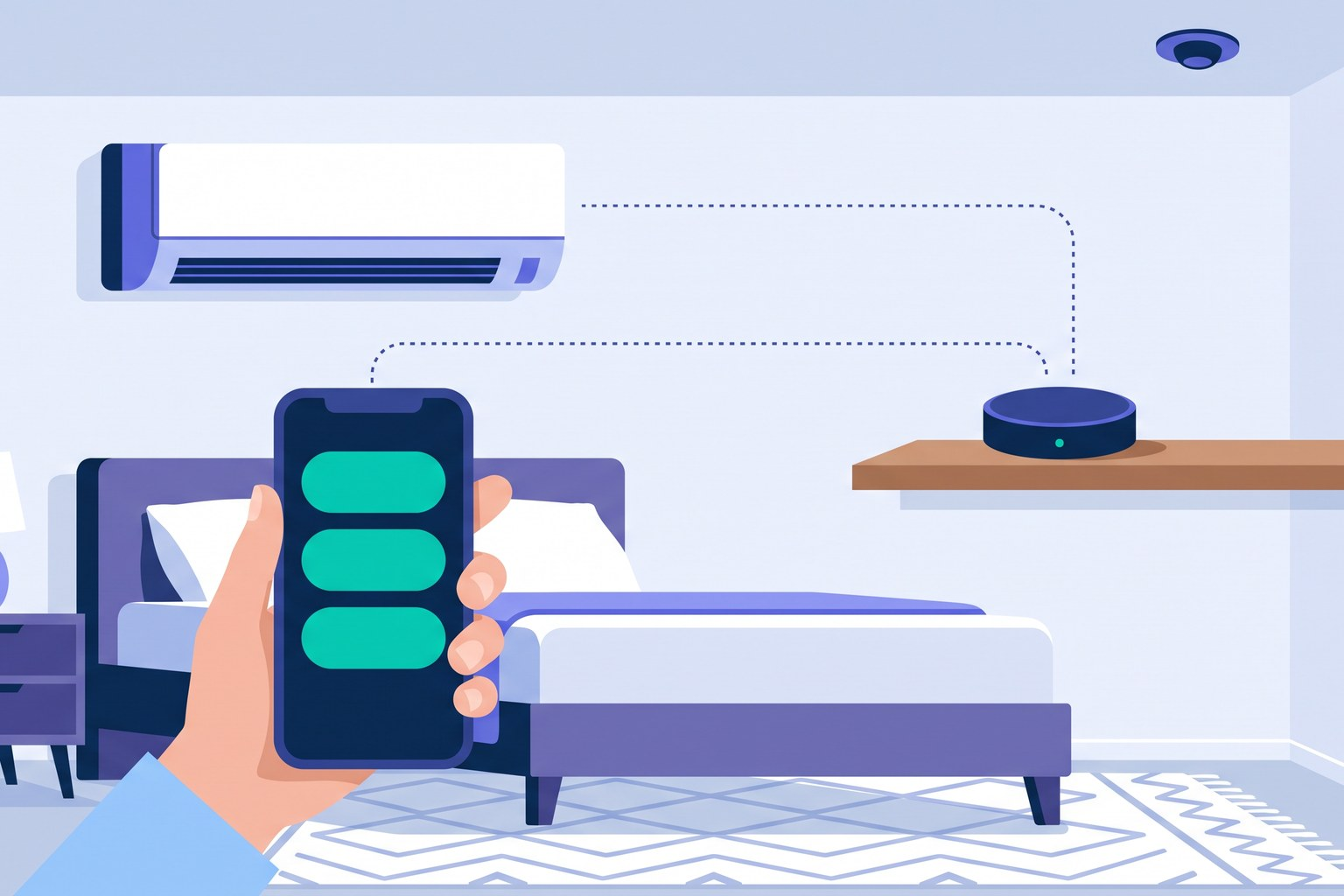
With Roraima, you can remotely control devices that typically rely on infrared remotes, such as air conditioning units, televisions, fans, and audio systems. You simply need to add a Wi-Fi universal remote to the room, a small device that stands in for the remote you already use.
How the universal remote works
The Wi-Fi universal remote sits on a piece of furniture, pointed towards the air conditioner or TV, and emits the same signals as your original remote. The difference is that it receives instructions via your Wi-Fi network rather than from your fingertips. Before you can use it, however, it needs to learn the buttons from your original remote. For each one, you place the two remotes close together, press the button, and give it a name, such as "power on" or "temperature down".
Home Assistant acts as a bridge
The universal remote does not communicate directly with Roraima. In between, there is Home Assistant, a popular free program for managing home devices that runs on a small computer kept running at your property. It is within Home Assistant that the remote learns the buttons, and it is also Home Assistant that passes the devices you choose to share over to Roraima.
You only need to set up the connection between the two once. In the Roraima dashboard, which is the private area where you manage your listings and bookings, open Locks and devices, then go to the Technologies page and select the Home Assistant tab. From there, you install the Roraima integration in Home Assistant and generate a pairing code, which you then paste into Home Assistant. At that point, Home Assistant will ask you which devices to show to Roraima, and you select the remote, which will then appear among your devices in the Roraima dashboard as well.
From buttons to scenarios
The physical buttons on your remote become scenarios in Roraima, which are essentially actions that Roraima performs when needed. A scenario can contain a single command, such as "turn on the air conditioner", or multiple commands in sequence. You can create one from the Scenarios page of your dashboard in the "Guided builder" tab, which walks you through the process step-by-step by selecting the remote as the device, choosing the action that sends a command, and naming the button you have taught it. Before using it for a guest, you can test it with the "Test" button next to the scenario, and the air conditioner will respond just as if you had pressed the button on the remote itself.
Commands on the guest's phone
Every scenario can become a button on the guest page, which is the personal page the guest opens via the link they receive by email after booking. To do this, open your listing, which is the room or apartment you are renting out, and go to the "Units and access" tab. Here, you indicate the remote under the devices for that room in the "Device access" section, and choose the scenarios to show the guest under "Buttons for the guest".
During their stay, the guest will see a button for each scenario with the corresponding name, allowing them to turn the air conditioner on or off and adjust settings directly from their phone. You can keep the original remote for yourself, removing the risk of it being damaged or lost.
Switching off when the accommodation is empty
The remote can also work in tandem with other supported devices to avoid unnecessary energy consumption. A presence sensor, for example, can detect if someone is in the accommodation. With a scenario that triggers automatically, you can have the remote send a power-off command when the sensor detects no one in the accommodation for a set period, such as thirty minutes. If you link this to the listing in the "During the stay" field within the same "Units and access" tab, this scenario will remain active only while the accommodation is occupied by a booking. To handle switching off after the guest has checked out, you simply link the "switch off" scenario to the "On departure" field.
To get started, you will need a Wi-Fi universal remote, Home Assistant running at your property, and a few minutes to teach the buttons. If you do not have a storefront on Roraima yet, you can open one for free.