
Nuki for short-term rentals: a Keypad code for each guest
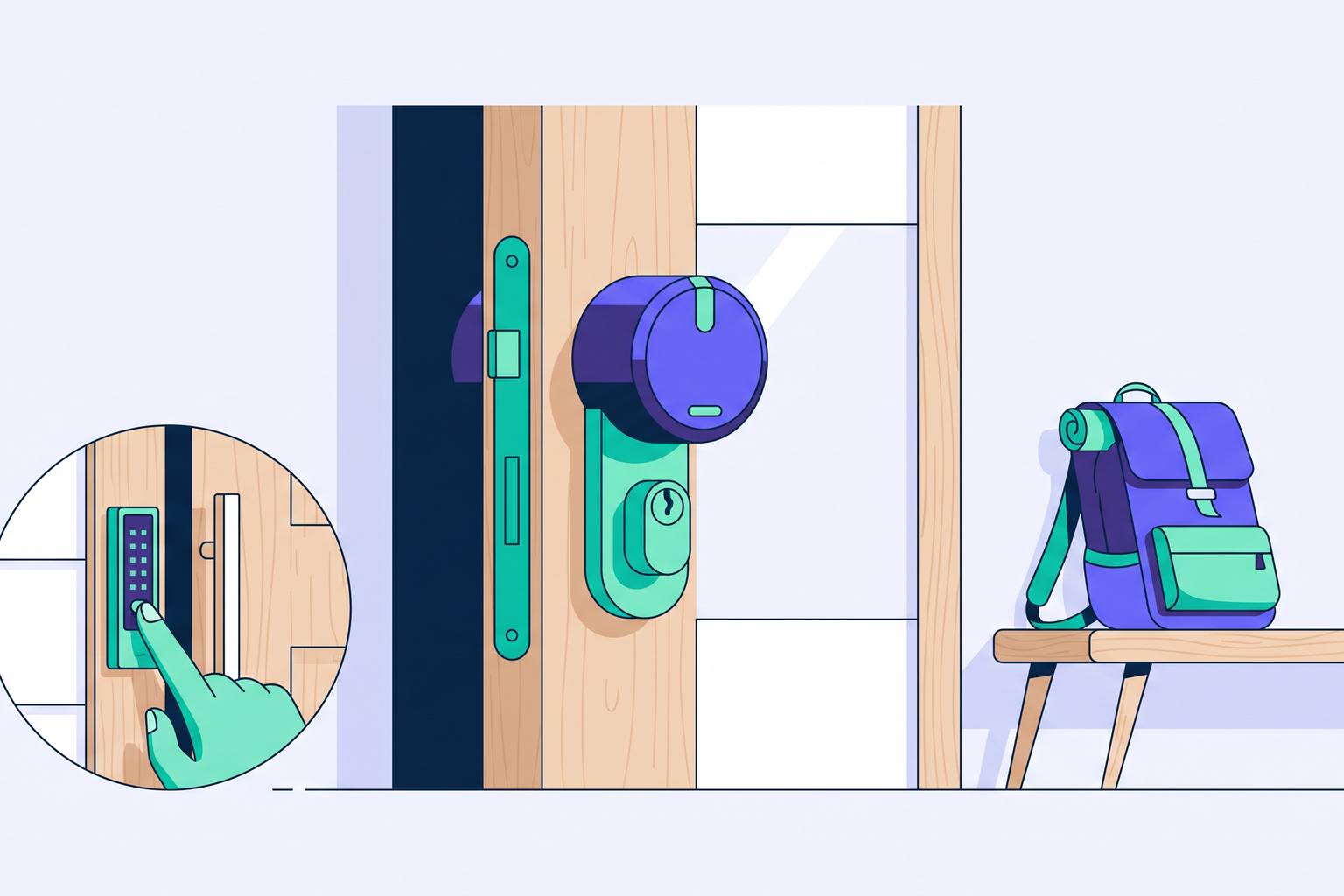
A Nuki smart lock paired with its Keypad and Roraima gives every guest a unique access code, valid only for the duration of their stay. Here is what you need, how to set it up, and how it handles your bookings.
A lock that doesn't change your door
Nuki has a straightforward approach: instead of replacing your existing lock, a small motor is mounted on the inside of the door, right over your current cylinder. Your physical key continues to work just as it always has. For anyone renting out a property, perhaps in a block of flats where you cannot change the door or in a home you might want to use yourself one day, it is a convenient solution. It is quick to install and can be removed without leaving a trace.
To let guests in with a code, however, you need a second device, the Nuki Keypad. This is a wireless keypad that you fix to the outside wall, right next to the door. This is where your guest enters their code, and it is the device to which Roraima assigns a new, unique code for every booking.
What you need to get started
There are three main components. The first is a Nuki lock from the compatible devices list: you will find the Go, Pro, and Ultra models in the Nuki category of our catalogue. The second is the Keypad, either the 2.0 version or the one with an NFC reader, both of which include a fingerprint scanner for you or your cleaning staff. The third is an internet connection for the lock, as Roraima needs to reach it to create and delete codes. The Go, Pro, and Ultra models have built-in WiFi and connect directly to your home network (the Go requires you to enable Nuki Remote Access first). For models that only communicate via Bluetooth, you will need a Nuki Bridge, which plugs into a power socket near the door. If your door is far from your router, our guide on what to do when your smart lock is out of WiFi range will help you find the best spot.
Before connecting everything, the lock must be installed and configured using the Nuki app on your phone, including the Keypad. You must also enable the Nuki Web service within the app, as this acts as the gateway for Roraima to communicate with your lock.
How to connect it to Roraima
The connection is established using a personal key generated within your Nuki account. On web.nuki.io, head to the API section and click Generate API Token to create a token. Copy this, then go to your Roraima dashboard, open the Cloud Accounts page, select Nuki, and paste the token. Roraima will verify it immediately and store it securely in an encrypted format.
Once that is done, go to your devices page, add the lock by selecting Nuki as the type, and finally link it to your property via the booking settings tab. From that moment on, every booking for that property will automatically generate its own unique code.
From booking to departure
When a booking arrives, Roraima selects a Keypad code and registers it on the lock, setting it to be valid only between the check-in and check-out times specified in your listing. The code will not work outside of this window, neither the day before nor the day after. Your guest will find the code on their booking page, along with other arrival information, so you do not need to send it to them manually. The principle behind time-limited codes is explained in our article on smart locks with temporary codes for short-term rentals.
If a guest decides to extend their stay, the validity of the existing code is simply updated to the new departure date, allowing the guest to keep using the same code they already know. Upon departure, or if a booking is cancelled, Roraima removes the code from the lock. It only considers the task complete once Nuki confirms the deletion. If the confirmation does not arrive, the system will automatically retry.
Each code is tagged with the booking reference, so you can see at a glance in the Nuki app exactly who a code belongs to.
When dates change
It is quite common for guests to shift their stay by a few days or for a booking to be moved to a different property. In these cases, Roraima does not just modify the existing code: it generates a new one for the correct dates and, only after successfully registering it on the lock, deletes the old one. This sequence is important, as it ensures the door always has a valid code for whoever needs to enter. The guest will find the updated code on their booking page, which remains their single point of reference from confirmation until departure.
Cleaning and property management
The codes Roraima creates are for guests and remain separate from those used by staff. You, as the owner, can continue to enter using your physical key, the Nuki app, or your fingerprint on the Keypad. For your cleaning staff, Nuki offers several options: a fingerprint registered on the Keypad, a personal code created via the app, or the Fob, a small remote you can keep on your keyring. This way, the lock's activity log clearly distinguishes between a guest entry, which carries their booking reference, and staff entry. Guest codes and permanent staff codes never get mixed up. It is worth keeping an eye on the total number of codes stored on the Keypad, as it has a finite capacity. Roraima handles the cleanup of expired guest codes, while you manage staff codes directly through the app.
The main entrance
Many rental apartments have a communal main door that is opened via an intercom. For this, Nuki offers the Opener, a small module that connects to your apartment's intercom system, allowing you to unlock the main door from the Nuki app. It is an accessory designed for those who live in or manage the property and can be found in the Bridge and accessories category, alongside the Keypad, the Bridge, and the Fob.
Installation
Installing a Nuki lock is well within the capabilities of most people. The motor is fixed to the existing cylinder with a mounting plate, and the Keypad is attached next to the door using either the provided screws or adhesive tape. You just need to verify that your cylinder is compatible, which is explained on each product page. If you would rather have someone else do it, you can find professionals in your area in our Installation category.
Both the lock and the Keypad are battery-operated. The Nuki app will notify you when the batteries are running low, so it is a good idea to keep spares at the property.
Getting started
The setup process is a one-time task: configure the lock and Keypad with the Nuki app, enable Nuki Web, paste the token into your Roraima Cloud Accounts page, and link the lock to your listing. After that, every guest receives their code automatically without you having to send a single message. You can find locks, Keypads, and Bridges in the Nuki category of our catalogue.
Frequently asked questions
Is the Keypad essential?
Yes, it is required to allow guests to enter with a code. The code Roraima creates for each booking is a Keypad code, and it is on the Keypad that the guest enters it.
Do I need the Nuki Bridge?
You need it if your lock only communicates via Bluetooth, as Roraima must be able to reach it via the internet to create and delete codes. A lock with built-in WiFi connects directly to your home network.
Does the guest need to install the Nuki app?
No. The guest only uses the code they find on their booking page on Roraima.
Can I still use my physical key?
Yes. The Nuki motor is mounted over your existing cylinder, so your key will continue to open the door as usual. This is useful for you as the owner and as a backup if the batteries run out.
How do I disconnect my Nuki account?
You can remove the connection at any time from the Cloud Accounts page in your dashboard. You can also revoke the token from web.nuki.io, which makes it unusable instantly.