
Tedee smart lock for short-term rentals: a code per guest
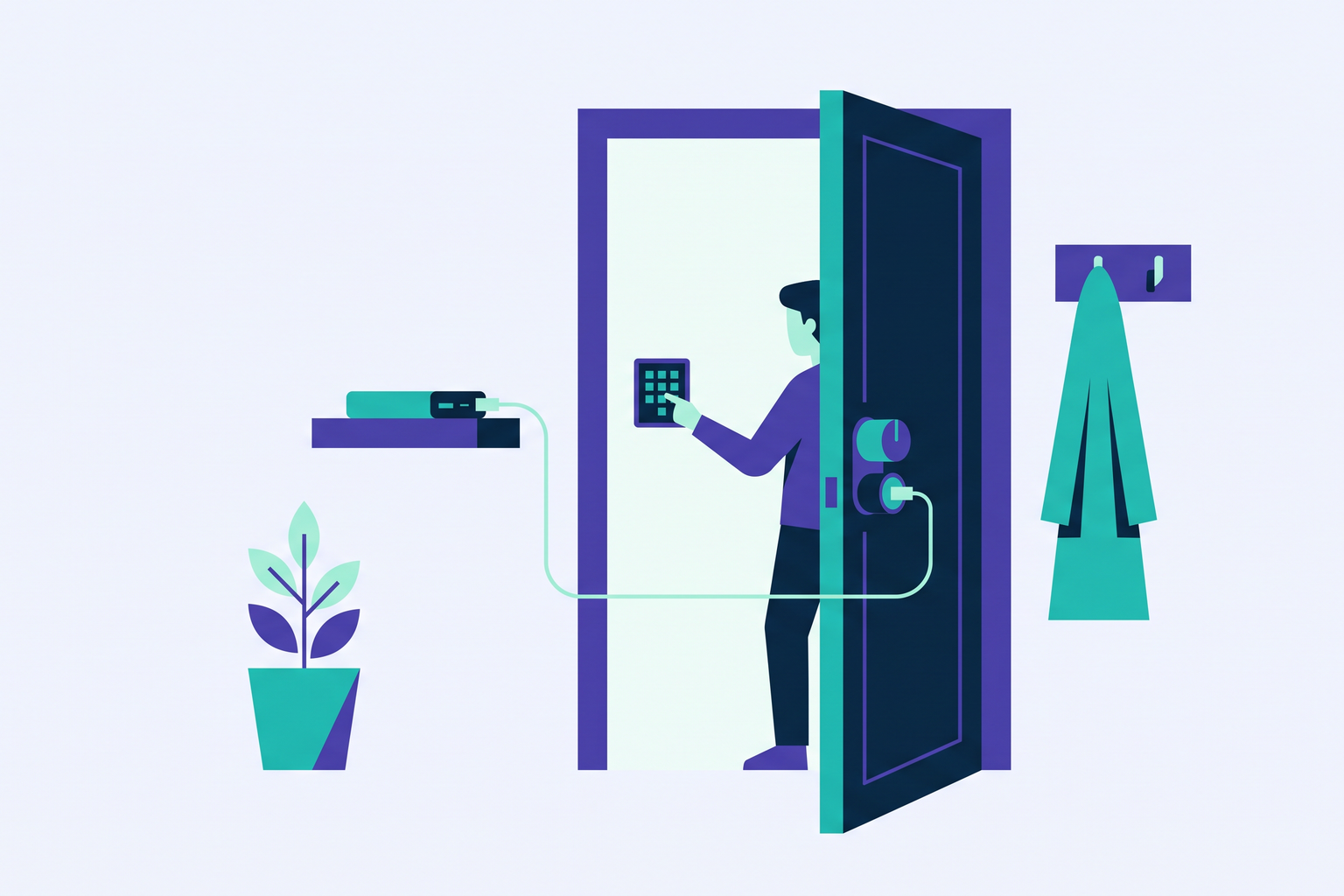
With a Tedee lock, its Keypad PRO, and Roraima, every guest receives a unique code that only unlocks the door for the duration of their stay. This guide explains what you need and how to get everything connected.
Small, discreet, and rechargeable
Tedee produces some of the most compact smart locks on the market. They are installed on the inside of the door, fitting onto your existing cylinder, so the exterior remains completely unchanged: no new handles, no bulky plates. They also feature something that hosts managing multiple properties will appreciate, as they don't use disposable batteries. Instead, they recharge via a USB-C cable, just like a mobile phone, and a single charge lasts for months.
There are two locks in the range. The GO2 fits onto your existing cylinder and is the simplest option, while the PRO is even smaller, features a built-in knob, and pairs with a Tedee modular cylinder that adjusts to the thickness of your door. Both are available in the Tedee section of our catalogue.
What you need to get started
To allow guests to enter using a code, you will need two accessories in addition to the lock itself. The Keypad PRO is the keypad that is fixed to the wall outside, right next to the door. This is where the guest enters the code that Roraima has generated for their booking. The Tedee Bridge connects the lock to your home WiFi network and should be plugged into a socket reasonably close to the door. Without it, the lock can only communicate with a phone nearby, whereas Roraima needs to reach it via the internet to set or remove codes. If your door is far from your router, our guide on what to do when your smart lock is out of WiFi range will help you find the best spot for the bridge.
The lock, Bridge, and Keypad PRO are first set up using the Tedee app on your phone, following the manufacturer's instructions. The range also includes a door sensor, which lets you know if the door is properly shut, not just locked.
Connecting to Roraima
The connection uses a personal key generated within your Tedee account. On portal.tedee.com, go to your user menu and select Personal access keys to generate a personal access token to copy. In your Roraima vendor panel, go to the Cloud Accounts page, select Tedee, and paste the token. Roraima will verify it and store it securely in an encrypted format.
Next, from your devices page, add the lock by selecting Tedee as the type, and link it to the specific property within the listing settings under connected devices. From that moment on, all bookings for that listing will automatically receive their own codes without any further effort on your part.
From booking to departure
For every booking, Roraima selects a temporary code and registers it on the lock, setting its validity from the check-in time to the check-out time specified in the listing. The guest finds this code on their booking page alongside their other arrival information, so there is no need to send it manually. You can read more about how time-limited codes work and why they are more secure than a fixed code in our article on temporary codes for short-term rentals.
If a guest extends their stay, Roraima simply pushes the expiry time of the existing code forward. The guest continues to use the same code they already know, and there is no need to send any new messages. Upon departure, or if a booking is cancelled, the code is removed from the lock. Roraima only considers the operation complete once Tedee confirms it. If the confirmation is delayed, the system will automatically retry.
Every code carries a booking reference, so you can immediately identify which stay it belongs to within the Tedee app.
When dates change
Adjusting a stay by a few days is standard practice for any host. When this happens, Roraima prepares a new code for the correct dates and only removes the old one after the new one has been successfully registered. This sequence is intentional, ensuring the door never lacks a valid code for someone who needs to enter. The guest finds the updated code on the same booking page, which remains their point of reference from confirmation until departure, so they do not need to hunt through old messages to find the right number.
Cleaning staff and owners
The codes Roraima creates are for guests and remain separate from those used by staff. As the owner, you can enter using a physical key, the Tedee app, or your own code on the Keypad PRO, which also accepts fingerprints. For cleaning staff, it is best to create a personal access profile via the Tedee app with a code or fingerprint. This way, the lock's activity log distinguishes between a guest entry, which carries their booking reference, and the entry of someone coming to clean. Guest codes are removed upon departure and do not clutter the lock's memory, while staff codes are managed by you and should be reviewed periodically, especially when your cleaning team changes.
The door sensor, mounted on the door frame, provides extra peace of mind. The Tedee app will alert you if the door has been left ajar without being fully closed, which happens more often than you might think when guests are rushing out with their suitcases.
Installation
Installing a Tedee lock is straightforward. The GO2 attaches to your existing cylinder with an adapter, the PRO mounts onto the modular cylinder, and the Keypad PRO is fixed to the outside with screws or adhesive tape. Before purchasing, it is worth checking the product page for compatibility with your cylinder and door thickness. If you prefer to rely on a professional, you can find local installers in our Installation category.
The lock is recharged using a USB-C cable without needing to be removed, and the Tedee app will notify you when the battery is running low. The Keypad PRO runs on batteries, which are worth keeping as spares in the property.
Getting started
The process is quick: configure your lock, Bridge, and Keypad PRO using the Tedee app, paste the token into your Cloud Accounts page, and link the lock to your listing. From then on, every guest will find their code on their booking page. You can find locks and accessories in the Tedee section of our catalogue, with the Bridge and Keypad PRO under Bridge and accessories.
Frequently asked questions
Are the Bridge and Keypad PRO really necessary?
Yes. The Keypad PRO is where the guest enters their code, and the Bridge is the connection through which Roraima writes and removes codes on the lock.
How often does the lock need charging?
It depends on how often the door is used, but in a rental property, a charge typically lasts for months. It recharges with a standard USB-C cable, and the Tedee app will warn you well in advance.
Does the guest need to install the Tedee app?
No. The guest only uses the code they find on their Roraima booking page.
Can I still use a physical key?
With the GO2, which is mounted on your existing cylinder, your key will continue to work. With the PRO, the Tedee modular cylinder comes with its own keys, which are useful for the owner and in case of emergencies.
How do I disconnect my Tedee account?
You can do this at any time from the Cloud Accounts page in your panel. You can also delete the token directly from portal.tedee.com, which renders it immediately unusable.
Is the code valid before the check-in time?
No. The code is valid from the check-in time specified in your listing until the check-out time. Therefore, it is the time set in your listing that determines when the guest can enter. It is best to set this with a bit of a buffer to allow for cleaning, so guests arrive to a ready home and your cleaning staff are not disturbed.